If you’ve been playing Roblox, you’ve probably noticed the ecosystem runs on transactions, whether it’s Robux purchases, game passes, or cosmetics. But keeping track of what you’re spending and where your money’s going? That’s where things get tricky. The good news is that Roblox has built-in tools to help you review and manage your transactions with precision. Whether you’re a parent monitoring a child’s account, a casual player wondering about that mysterious charge, or a competitive gamer keeping tabs on battle pass spending, understanding how to access and interpret your Roblox transactions is essential. This guide walks you through every step: finding your transaction history, decoding what you’re seeing, setting spending limits, troubleshooting issues, and protecting yourself from fraud. By the end, you’ll know exactly how to take control of your Roblox spending.
Key Takeaways
- Access your Roblox transactions through Settings > Billing on desktop or mobile to review purchase history, find transaction IDs, and monitor spending across Robux purchases, game passes, and subscriptions.
- Set a Spending Cap in your account settings to establish monthly purchase limits and protect against unexpected charges, especially important for parents managing younger players’ accounts.
- Enable two-factor authentication (2FA) and maintain a strong, unique password to prevent unauthorized account access and fraudulent Roblox transactions.
- Review your transaction history monthly to catch unauthorized charges early, identify spending patterns, and make informed decisions about recurring subscriptions and in-game purchases.
- Avoid free Robux scams, phishing sites, and account trading schemes—only purchase items through the official Roblox platform and never share your password on third-party websites.
- If you spot unauthorized charges, immediately change your password, enable 2FA, dispute the transaction with your bank, and file a support ticket with Roblox providing your transaction ID.
What Are Roblox Transactions?
Roblox transactions are any financial activity tied to your account. This includes purchasing Robux (the in-game currency), buying game passes for individual games, subscribing to the Roblox Premium membership, or making one-off purchases for cosmetics and items. Each transaction generates a record, a digital receipt, essentially, that Roblox stores indefinitely.
Understanding the difference between transaction types matters. A Robux purchase is straightforward: you’re buying currency that gets deposited into your account balance. A game pass is a one-time or recurring payment within a specific game. Roblox Premium is a monthly subscription that gives daily Robux stipends and other perks. Knowing which category each charge falls into helps you spot unauthorized activity and manage your budget.
Transactions on Roblox are tied to your payment method, credit card, PayPal, gift card, or platform-specific payment (if you’re on console). Every time money changes hands, Roblox logs it. This history is your accountability trail and your first line of defense against fraud.
How To Access Your Transaction History
Step-By-Step Instructions For Desktop Users
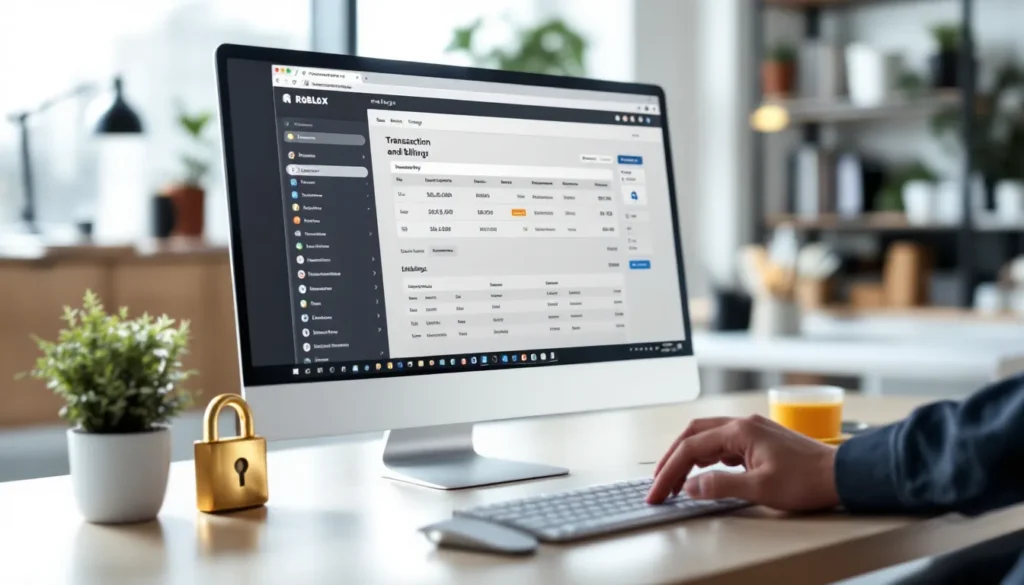
On desktop, accessing your transaction history is straightforward:
- Log into your Roblox account at roblox.com.
- Click your profile icon in the top-right corner.
- Select Settings from the dropdown menu.
- In the left sidebar, click Billing (you may need to scroll down to find it).
- You’ll see a section labeled Transactions or Purchase History. Click it.
- Your complete transaction history appears, listed reverse-chronologically (newest first).
You can filter by date range or payment method using the filter options at the top. Clicking on any individual transaction reveals more detail: the exact item purchased, the amount, the date and time, and the transaction ID. This is the information you’ll need if you ever need to dispute a charge or file a refund request.
One note: if you’re a parent managing a child’s account, you’ll need access to their login credentials to view their transaction history. Roblox doesn’t currently offer a separate parental dashboard for transaction monitoring (though account restrictions are available through Roblox parental controls, covered later).
Mobile Access Tips And Alternatives
On mobile (iOS or Android), the process is nearly identical, though the interface is slightly condensed:
- Open the Roblox app and tap your profile icon (bottom-right).
- Tap Settings.
- Scroll down and tap Billing.
- Select Transactions or Purchase History.
The information displayed is the same: the only difference is layout. If you’re having trouble finding it on mobile, switching to desktop view (available in most mobile browsers) often makes navigation clearer.
Alternatively, you can check transactions through your payment provider. If you paid via credit card, your card issuer’s app or website shows every Roblox charge. PayPal users can log into their PayPal account and view transaction history there. This is especially useful for cross-referencing: if you see a charge on your bank statement but can’t find it in Roblox’s system, the payment provider’s record is the official source.
Understanding Your Transaction Details
Reading Transaction Records And Receipts
When you click on a transaction, you’ll see several pieces of information. Let’s break down what each one means:
Transaction ID: A unique identifier for that purchase. You’ll need this if you ever contact Roblox support about a dispute or refund.
Item: The name of what was purchased. This might be “500 Robux,” “Game Pass: [Game Name],” or a specific cosmetic item from a game.
Amount: The dollar amount (or your local currency) charged. Note that this is the final amount after taxes (if applicable in your region).
Date and Time: When the purchase was processed. Time zones are typically shown in your local time.
Status: Usually “Completed” for successful transactions, though you might also see “Pending” or “Failed” (more on those below).
Payment Method: How you paid (credit card ending in XXXX, PayPal, gift card, etc.). This is critical for identifying unauthorized charges, if you see a payment method you don’t recognize, that’s a red flag.
Some transactions also include a refund status or note. For instance, if you purchased Robux during a promotion, the receipt might note that. Always skim these notes: they provide context.
Identifying Pending, Completed, And Canceled Transactions
Completed transactions are straightforward: the payment processed successfully, and you either received the Robux, game pass, or cosmetic item. These show a green checkmark or “Completed” label.
Pending transactions are still being processed. This is common for certain payment methods (like bank transfers) or if Roblox’s system needs extra time to verify the payment. Pending status typically resolves within 24-48 hours. During this time, the Robux or item hasn’t been credited to your account yet, even though the charge may appear on your bank statement.
Canceled transactions mean the purchase never went through. This might happen if you canceled it yourself, your payment method was declined, or Roblox flagged it (usually as a fraud precaution). Canceled transactions don’t charge your account, though a temporary hold from your bank might take a few days to clear.
If a transaction stays pending for more than 48 hours, or if it shows as completed on Roblox but you never received the item, that’s when you contact Roblox support with your transaction ID.
Managing Your Spending And Setting Limits
Parental Controls And Account Restrictions
Roblox has built-in tools specifically for parents to prevent unexpected charges. The most powerful is the Spending Cap, a feature that limits how much Robux can be purchased in a given period:
- Log into the account you want to restrict.
- Go to Settings > Account > Billing.
- Look for Spending Cap or Purchase Limit (the exact name varies by region).
- Set a monthly cap in your local currency.
Once enabled, the account can’t purchase Robux beyond that limit. The spending cap doesn’t affect in-game earnings (like the daily Robux stipend from Premium) or Robux acquired through game development.
Another crucial setting is Account Age Verification. Roblox allows you to restrict certain purchases to verified accounts. This helps prevent accidental charges from younger users or compromised accounts.
For younger players specifically, consider enabling Moderate Account Restrictions under the Age and Account section. This limits what games, content, and social features they can access based on COPPA (Children’s Online Privacy Protection Act) compliance.
Budgeting Tips For In-Game Purchases
Beyond official limits, smart spending habits matter:
Track recurring subscriptions. Roblox Premium, game pass subscriptions, and cosmetic battle passes add up. Create a simple spreadsheet of what you’re subscribed to and when renewals occur. Set calendar reminders a day before renewal so you can decide if you want to keep them.
Set personal spending limits. Even if Roblox doesn’t enforce a hard cap, decide your own budget per month. Many players find that setting a fixed Robux allowance, say, “I’ll spend 50 dollars a month max”, prevents impulse purchases.
Use gift cards strategically. Instead of saving a payment method on file, purchase Roblox gift cards in set amounts. This creates a natural spending ceiling: once the card balance is gone, you can’t spend more without buying another card. It’s a friction point that makes you think twice.
Audit regularly. Every month, spend 5 minutes reviewing what you purchased. Did that $9.99 game pass feel worth it? Are you using Premium? These small audits build awareness and inform future decisions.
Be wary of limited-time offers. Roblox games often advertise limited-time cosmetics or battle passes. The urgency is intentional. Ask yourself: would I buy this if it were available forever? If the answer is no, skip it.
Troubleshooting Common Transaction Issues
Dealing With Failed Payments And Refunds
A failed payment typically means one of three things: your payment method was declined, there was a temporary technical issue on Roblox’s end, or your account triggered fraud detection.
If your payment was declined: Check with your bank. Your card issuer might have blocked the charge due to unusual activity, fraud alerts, or insufficient funds. Contact your bank to confirm the transaction is authorized, then try again. Some banks require you to whitelist Roblox: ask your bank’s fraud team if that’s an option.
If it’s a technical issue: Wait a few hours and retry. If the problem persists, contact Roblox support directly. Have your transaction ID and payment method ready.
For refund requests: Roblox’s refund policy is strict but not unreasonable. You can request a refund within 30 days of purchase if you didn’t receive the item or service. But, Robux itself is generally non-refundable once spent in games. If you purchased Robux and immediately spent it, a refund is unlikely unless there’s a clear error on Roblox’s part.
To request a refund:
- Go to the Roblox help page and select “I want a refund.”
- Provide your transaction ID and reason.
- Submit and wait for a response (usually within 3-5 business days).
Be honest and specific in your reason. “I changed my mind” is less likely to be approved than “I never received the game pass after purchasing it.”
Unauthorized Charges And Account Security
If you see a transaction you didn’t make, act fast:
Step 1: Change your password immediately. Go to Settings > Password and set a new, strong password. Use a mix of uppercase, lowercase, numbers, and symbols.
Step 2: Review your account activity. Check for any trades, item transfers, or Robux gifts that you didn’t authorize. These might be signs of account compromise.
Step 3: Enable two-factor authentication (2FA). Under Settings > Security, turn on 2FA. This requires a code from your phone every time you or someone else logs in from a new device. It’s one of the strongest protections against account takeover.
Step 4: File a dispute with Roblox Support. Provide the transaction ID and explain that the charge was unauthorized. Include dates, amounts, and any account activity that seems suspicious.
Step 5: Dispute with your payment provider. If Roblox’s support doesn’t resolve it quickly, open a dispute with your bank or credit card company. Document everything: screenshots of the Roblox transactions, communication with Roblox support, and your bank statement. Payment providers take unauthorized charges seriously and often side with the customer.
Prevention going forward: Remove any payment methods you’re not actively using. If your account was compromised once, review all connected payment methods and delete suspicious ones. Consider using a virtual credit card number for online gaming purchases: many banks now offer this feature to reduce fraud risk.
Best Practices For Safe Roblox Spending
Protecting Your Payment Information
Your payment details are valuable, and Roblox is a target for hackers because it attracts younger players with less security awareness.
Use a strong, unique password. Don’t reuse passwords from other websites. If one site gets breached, hackers immediately try that password everywhere else. A password manager like Bitwarden or 1Password makes managing unique passwords effortless.
Enable two-factor authentication without delay. 2FA adds a second verification step using your phone. Even if someone has your password, they can’t log in without access to your phone. This is non-negotiable for any account with payment methods attached.
Don’t share your account. Sharing an account with friends, even for “just playing together”, is a security nightmare. You can’t monitor who’s accessing it, and if that friend’s computer gets malware, your account is compromised. Play together in multiplayer servers instead.
Be cautious with third-party sites. Roblox has a thriving ecosystem of sites offering guides, tools, and cosmetics. Many are legitimate, but some phish for login credentials. Never enter your Roblox username and password on any site except roblox.com. If a site asks for your password, it’s a scam.
Keep your email address secure. Your Roblox account recovery relies on email access. If someone compromises your email, they can reset your Roblox password. Use 2FA on your email account too, and don’t reuse that password anywhere.
Review connected apps and services. Under Settings > Apps, check what third-party apps have access to your account. Disconnect anything you don’t recognize or don’t use anymore. This reduces the attack surface if an app gets compromised.
Recognizing Scams And Fraudulent Transactions
Roblox scammers use multiple tactics. Knowing them helps you spot fakes:
Free Robux promises: “Get free Robux by completing surveys” or “Click here for instant Robux.” These are scams. Roblox never gives away free Robux outside of official events. Any site promising it is harvesting your information or infecting your device with malware.
Account theft offers: “I’ll help you recover a banned account” or “Sell your Roblox account for cash here.” Both are scams. Trading accounts violates Roblox’s terms, and recovery services are almost always phishing attempts. If your account was banned, contact Roblox support, not a random third party.
Game pass and cosmetic resale sites: Some websites claim to sell Roblox items or game passes cheaper than official sources. If they’re offering a deal “too good to be true,” it is. Many redirect you to phishing pages or steal your payment information. Only buy from the official Roblox platform.
Social engineering in games: A player in-game messages you: “I’m a Roblox moderator. I need your password to verify your account.” Roblox staff never ask for passwords in-game. This is a scam. Block the player and report them.
Suspicious transaction emails: If you receive an email claiming to be from Roblox asking you to “confirm your payment information,” verify it. Check the email address carefully (scammers use lookalike addresses). Log into your actual Roblox account directly (don’t click email links) to confirm. Real Roblox emails come from @roblox.com addresses.
Unusual game mechanics that mimic real payments: Some games include UI elements that look like Roblox payment screens but are fake. They prompt you to “enter your password” or “confirm payment.” Never do this. The only real Roblox payment prompts come from the official Roblox interface, not from games.
If you fall for a scam and see unauthorized charges, act immediately: change your password, enable 2FA, dispute the charge with your bank, and file a support ticket with Roblox.
Conclusion
Managing your Roblox transactions doesn’t require paranoia, just awareness and a few good habits. You now know how to access your transaction history on desktop and mobile, interpret what you’re seeing, set spending limits (both through Roblox’s tools and personal discipline), troubleshoot common issues, and protect yourself from fraud.
The most important takeaway: review your transactions monthly. Spending five minutes checking your purchase history catches unauthorized charges early and helps you recognize patterns in your own spending. If you’re a parent, set those spending caps and enable account restrictions: they’re designed for your peace of mind.
Roblox transactions are designed to be transparent. The platform logs everything, and you have the tools to manage it all. Use them, stay vigilant, and spend smart.